
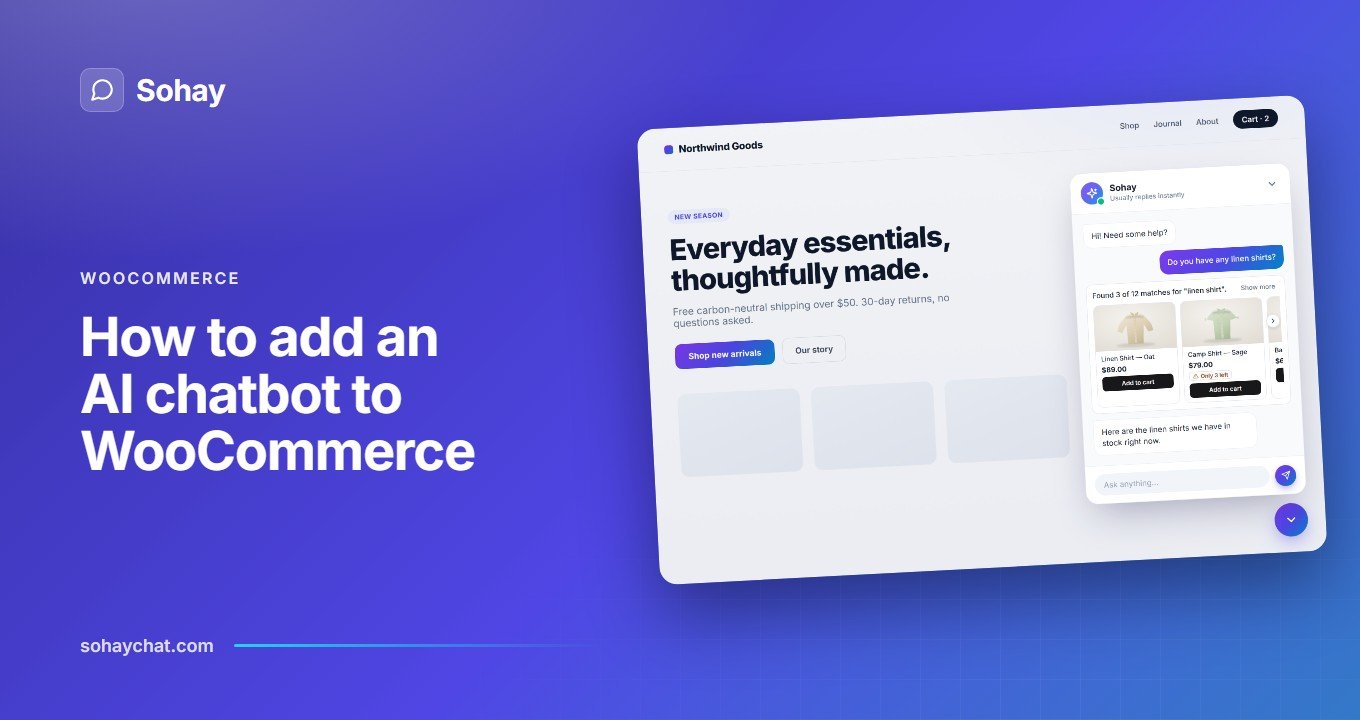
Shoppers ask questions your product pages already answer. “Does this come in medium?” “Is this in stock?” “What’s your return window?” It’s all on the site somewhere. They still ask, because finding it means backing out of the page they’re on and going hunting.
A generic AI chatbot makes that worse. It doesn’t know your stock or your return policy, so it invents them — confidently — and you get a support email that opens with “your chatbot told me…”.
Here’s the short version of how to add an AI chatbot to WooCommerce that reads from your real store instead of guessing: install Sohay, paste an OpenAI or Google Gemini API key, set a daily spend cap, publish a few Knowledge Base articles, and click Sync All Articles. The chat launcher appears in the bottom-right corner of your site. On a WooCommerce store the shopping tools switch themselves on — catalog search, live stock and prices, and the cart — with no extra configuration.
I built Sohay, so the rest of this is going to be specific about what it does and blunt about what it doesn’t.
What you’ll need
- WordPress 6.6 or later, PHP 8.1 or later. Tested up to WordPress 7.0.
- WooCommerce 7.0 or later if you want the shopping tools. They’re optional — everything else works on any WordPress site.
- An API key from OpenAI or Google.
That last one isn’t an upsell, it’s a prerequisite. Sohay is a front end for someone else’s models. Without a key there’s no model to call and the chat can’t answer anything. The provider bills you directly per token; the plugin resells nothing and takes no cut.
Step 1 — Install the plugin
From Plugins → Add New, search for Sohay, then Install Now and Activate. A Sohay menu appears in the admin sidebar.
That menu is where everything lives: Dashboard, Conversations, KB Articles, KB Categories, KB Sync, Settings, and Diagnostics.
Step 2 — Add your OpenAI or Google Gemini API key
Go to Sohay → Settings. Pick your provider, paste that provider’s key, and save.
- OpenAI — create a key at
platform.openai.com. This is the default. - Google (Gemini) — create a key at
aistudio.google.com/apikey.
Keys are encrypted with AES-256-GCM before they touch the database, and the field shows a masked placeholder from then on. They’re excluded from the WordPress REST API, and each key is only ever sent to the service it belongs to. Each provider’s key and model choice are stored separately, so switching providers and switching back doesn’t mean re-entering anything.
One thing to know before you pick a provider. The Knowledge Base indexes and searches your articles through OpenAI regardless of which provider answers the chat. If you choose Gemini and you want the Knowledge Base, keep an OpenAI key saved too. Without one the chatbot still replies — it just stops consulting your articles. It fails cleanly rather than halfway through an answer, but it does stop. The Settings page says so inline, so you won’t discover it later. There’s more on why in building an AI chatbot trained on your own content.
While you’re on this screen, pick a model and optionally write a welcome message — the greeting a visitor sees when they open the chat, up to 280 characters.
Step 3 — Set a daily spend cap
Still on Sohay → Settings, under Spend protection.
Two ceilings, both measured in tokens per day:
| Cap | Default | What it does |
|---|---|---|
| Site-wide | 1,000,000 tokens/day | Total across every visitor |
| Per-visitor | 100,000 tokens/day | Stops one person burning the lot |
They reset at UTC midnight. Set either to 0 to disable that ceiling. When a cap is hit, the plugin stops calling your provider for the rest of the day — it’s a hard stop, not a warning. There’s also a rate limit of 20 chat requests per 60 seconds per visitor sitting underneath, which is what actually catches a hostile script before the token cap ever notices.
Sohay → Diagnostics shows today’s usage live and warns you at 80% of the site cap, alongside the last 100 log entries.
Set these before you go live, not after. The defaults are deliberately generous so a real store never trips them by accident — which is the same reason they won’t do much to hold your bill down if you leave them alone. Pick numbers that match what you’d genuinely be willing to spend in a day. The full arithmetic is in how much an AI chatbot costs per month.
Step 4 — Build the Knowledge Base
This is the part that decides whether the chatbot is useful or annoying.
Go to Sohay → KB Articles → Add New and write articles the way you’d write support documentation. Longer-form pieces work better than one-line answers. Write the questions you actually get asked, not the ones you wish you got asked. And write a fallback “Contact us” article, so that off-topic questions route to a human instead of dead-ending.
Then go to Sohay → KB Sync, open the Dashboard tab, and click Sync All Articles. The sync runs in the background rather than while you sit on the screen, and articles become searchable to the chatbot within a minute or two.
When a visitor asks something, their question is matched against your articles first, and the model answers from the text that came back. If nothing matches, it says it doesn’t know instead of inventing something. That’s the whole trick, and it’s covered properly in building an AI chatbot trained on your own content.
Step 5 — Tag your policy articles
On a store, shipping, returns, and refund questions get special handling — they’re the questions that cost you the sale when they go unanswered.
Sohay creates two KB Tags for you on activation: Policy and FAQ. Tag your shipping policy, returns policy, and similar articles accordingly.
The lookup then runs in three tiers:
- Your WooCommerce store pages first — Terms, Privacy, Refunds and Returns.
- Then KB articles tagged
policyorfaq. - Then the rest of the Knowledge Base as a fallback.
Store pages win because they’re the version your legal setup actually points at.
What the chatbot can do on a WooCommerce store
Seven tools ship. Six are WooCommerce, one is the Knowledge Base lookup that works everywhere.
| Tool | What it does |
|---|---|
sohaychat-wc/search-catalog | Search and browse — “waterproof jackets under $100”, “what’s on sale?” |
sohaychat-wc/lookup-catalog | Catalog lookup |
sohaychat-wc/get-product | One product in detail, including its variants |
sohaychat-wc/search-shop-policies-and-faqs | Shipping, returns, refunds, payment — the three-tier lookup above |
sohaychat-wc/get-cart | Read the shopper’s cart |
sohaychat-wc/update-cart | Add, change quantity, or remove — every change gets an Undo button |
sohaychat-kb/get-information | Knowledge Base lookup |
Two things matter more than the list.
Results render as cards, not walls of text. A product search comes back as product cards with photo, price, stock, and an Add to cart button. The cart comes back as a summary with totals and a checkout link.
Every price and stock status is read from your store at the moment it’s asked. Not from the model’s memory, not from a nightly export. This is the difference between a chatbot that helps and one that cheerfully sells something you stopped stocking in March.
The cart side is the part most people want to see working, and it has its own walkthrough: the WooCommerce chatbot add to cart flow.
What it can’t do
The chatbot cannot take payment or place an order. It fills the cart and hands the shopper to your normal WooCommerce checkout. That’s a deliberate line — payment flows are where WooCommerce, your gateway, and your tax and fraud rules all have to agree, and a language model has no business improvising in the middle of that.
It also doesn’t read order history, customer records, or anything from checkout. The shopping tools simply aren’t wired to them.
There’s a second trade-off worth knowing about. Since 1.2.0 the widget renders inside an isolated container, so your theme can’t break the chat’s styling and the chat can’t break your site’s. The cost is that other scripts scanning your pages don’t look inside it either — translation plugins like TranslatePress and Weglot won’t translate the chat’s own wording, and session-replay tools like Hotjar or Clarity record it as a blank area. Screen readers and keyboard navigation are unaffected, because assistive technology reads the accessibility tree and the isolation doesn’t hide that. The bot also still replies in whatever language the visitor writes in.
And if you don’t run WooCommerce: the shopping tools are hidden completely. The model isn’t told they exist, so it can’t offer to do things your site can’t do.
Where conversations are stored
In custom tables in your own WordPress database. Not on my servers — there aren’t any. No telemetry, no phone-home, no analytics, no third-party fonts or CDN assets. Outbound traffic goes to api.openai.com and, if you’ve selected Gemini, generativelanguage.googleapis.com. Nowhere else.
Every chat shows up under Sohay → Conversations, where your team can read, search, filter by status, assign to a teammate, reply, pin, and close. Soft-deleted conversations are purged after 30 days; logs after 7.
There’s a nuance on a store — the cart contents go to your AI provider and get stored with the conversation, which is what keeps the cart card visible when a visitor scrolls back. It’s covered by the same export, erase, and retention paths as everything else, and it’s worth understanding properly if you’re in the EU: GDPR and the WordPress AI chatbot data flow.
FAQ
Do I need WooCommerce to use this?
No. The chat widget, Knowledge Base, and Conversations inbox work on any WordPress site. On stores running WooCommerce 7.0 or later the shopping tools switch on by themselves. Sohay declares HPOS and Cart-Checkout-Blocks compatibility, so you won’t see an “uncertified plugin” banner.
Should I pick OpenAI or Gemini?
Either works for chat. If you’re using the Knowledge Base, you need an OpenAI key saved regardless, because indexing and search run through OpenAI whichever provider answers. That makes OpenAI the simpler choice for most stores. You can switch later without re-entering anything.
Will it make things up?
It’s grounded in the articles you publish, and it says it doesn’t know rather than inventing an answer when nothing matches. Product details are a stronger guarantee than that — prices, stock, and variants are read live from WooCommerce, so there’s nothing for the model to invent. The honest caveat: how well it answers support questions depends on how well your Knowledge Base is written.
Does it slow the site down?
A launcher of roughly 8 KB loads on every page. The full chat bundle only downloads when someone actually opens the chat, so most visitors never download it at all. No external CDN scripts, fonts, or trackers.
Can I hide the widget on certain pages?
Uncheck Show widget under Sohay → Settings to hide it everywhere. To scope it per page, use the sohaychat_should_render_widget filter:
add_filter( 'sohaychat_should_render_widget', function ( $enabled ) {
	if ( ! $enabled ) {
		return false;
	}
	return function_exists( 'is_shop' ) && ( is_shop() || is_product() );
} );
That one hides the chat everywhere except the shop and product pages. There are 48 filters and 12 actions in total — note the prefix is sohaychat_, not sohay_.
Add Sohay to your store
Sohay is free on WordPress.org. You bring your own OpenAI or Gemini key, the provider bills you directly, and the daily spend cap means it can’t run away from you.